Talk to your console.
The perfect companion for Mixing Station. Use natural language to configure channel names and colors.
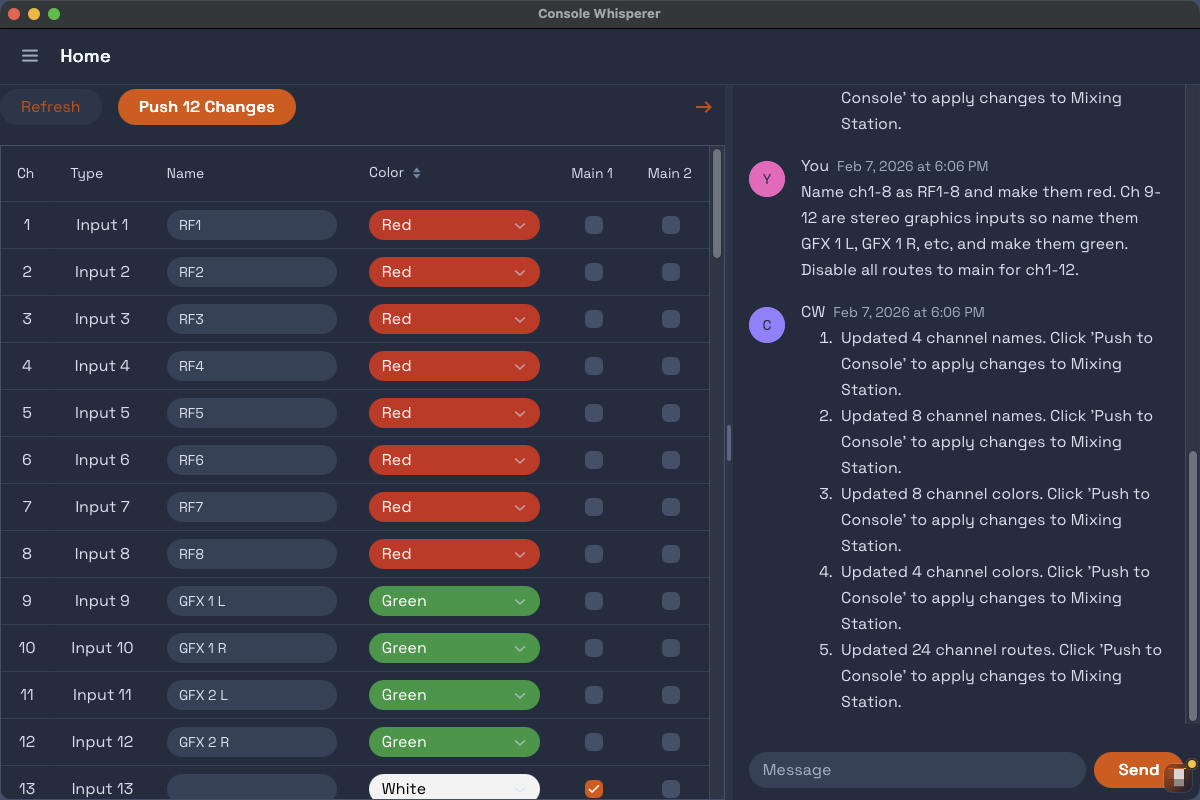
The perfect companion for Mixing Station. Use natural language to configure channel names and colors.
Setting up a console isn't hard — it's just time-consuming. If you've done it a thousand times, you want it to go faster.
"Set channel names:
1. Kick In
2. Kick Out
3. Snare Top
..."
Paste any input list — even 256 channels at once.
Moving to a new console model? Transfer your entire setup in three steps:
Get up and running in a few simple steps.
Console Whisperer works through Mixing Station — the popular multi-platform mixer control app. You can configure consoles in offline mode for free. Connecting to hardware requires an affordable Mixing Station license.
Bring your own free Google Gemini API key — the free tier is generous enough for most users. You can also run fully offline with Ollama.
Set channel names, colors, and routes to mains using natural language. More capabilities are on the way — built around what users actually ask for. Send a feature request.
Console Whisperer is a desktop app available on Windows and macOS. Need Linux support? Let me know and I'll build it.